Getting Started
How to sign in to M2 Garmin Sync using a magic link.
Getting Started
M2 Garmin Sync uses passwordless sign-in — you don't need to remember a password. Instead, you receive a one-time magic link by email each time you sign in.
Before you start
You need an account that has been created for you by an M2 administrator. You'll typically receive a welcome email with a link to the platform when your account is set up. If you haven't received one, contact the study coordinator.
Signing in
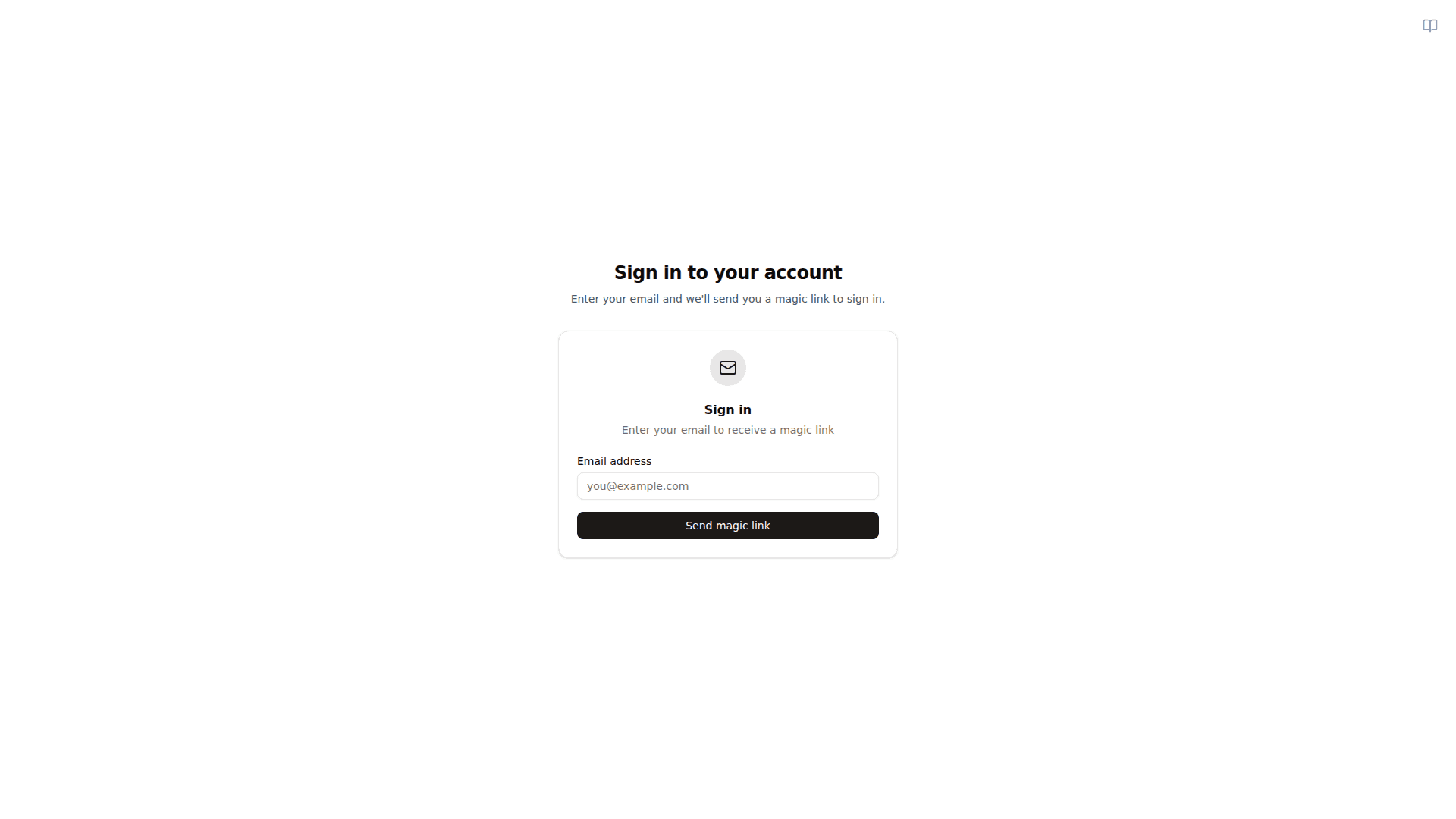
- Visit the M2 Garmin Sync site and click Sign in.
- Enter the email address registered for your account.
- Click Send magic link.
- Open your inbox and click the Sign in to M2 Garmin Sync button in the email. The link is valid for a limited time.
- You'll be redirected back to the site and signed in automatically.
The magic link can only be used once. If you click it twice, the second click will fail — just request a new link.
What you'll see after signing in
Your landing page after sign-in is Profile — your account details, your Garmin connection, and your synced data. The navigation bar adapts to your role:
- Profile — account details, Garmin connection status, and your incoming data.
- Admin — only visible if your account has the
adminrole. This is where participant management happens. - Docs icon (book) — in-app documentation, always available.
Your profile information
The profile page shows your email, first name, and last name. If your role is
user, these fields are read-only — only an administrator or researcher
can edit your name. Email addresses are never editable from the profile page;
an administrator must change them on your behalf. See the
FAQ for why.
Signing out
Use the user menu in the top-right corner and choose Sign out. On mobile, open the menu icon to access the same option.