Connecting Garmin
Link your Garmin Connect account so your wearable data syncs to M2 automatically.
Connecting Your Garmin Account
To start sharing data with the M2 study, you need to authorize M2 Garmin Sync to read your Garmin data. This is a one-time setup that takes about a minute.
Before you start
You need:
- An active Garmin Connect account (the account paired with your Garmin device).
- Your Garmin device set up and syncing to Garmin Connect normally — either via the Garmin Connect mobile app or via a paired phone.
Step-by-step
-
Sign in to M2 Garmin Sync.
-
Open the Garmin page from the navigation.
-
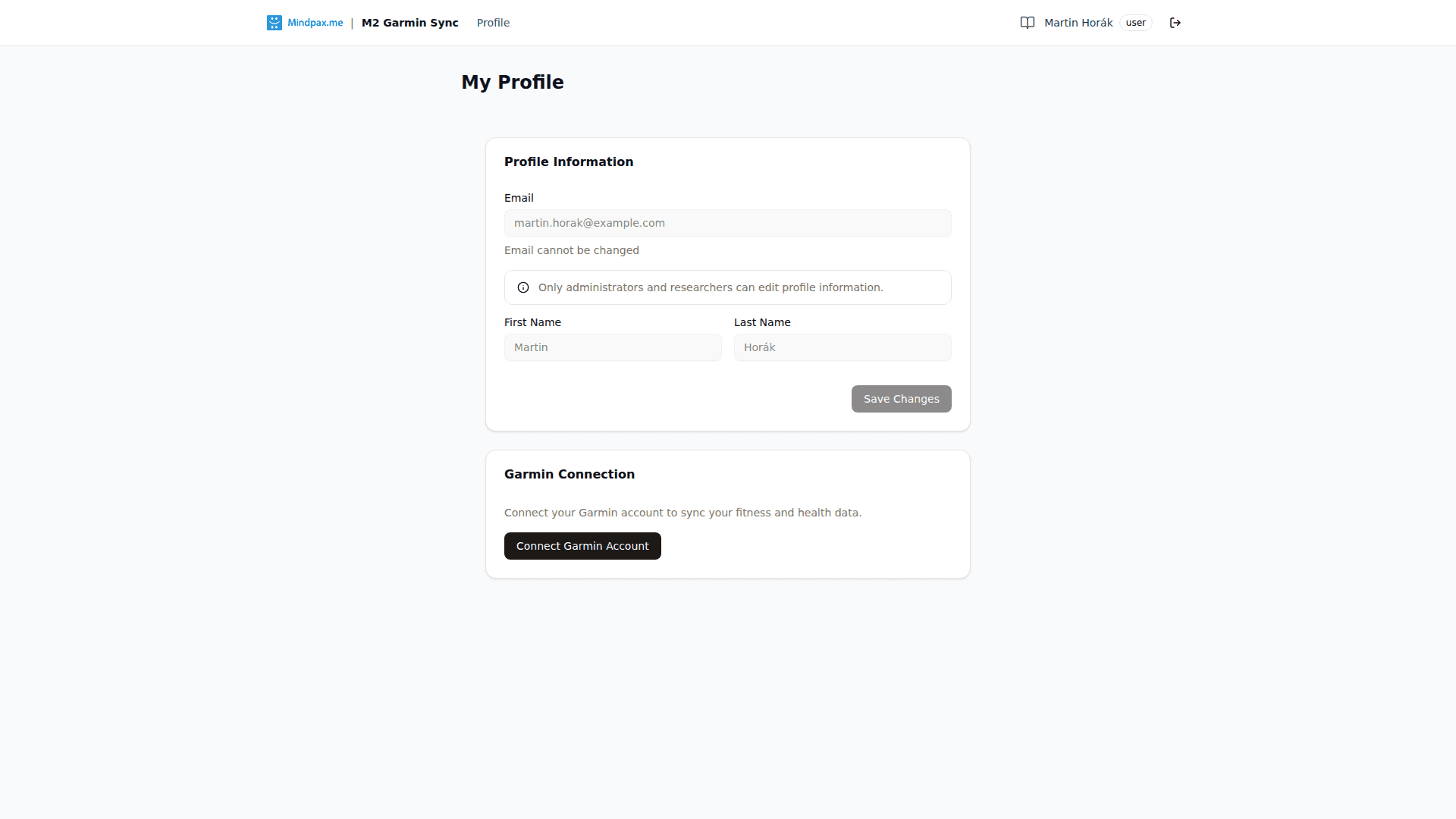
Click Connect Garmin.
-
You'll be redirected to connect.garmin.com to sign in to your Garmin account. Use your normal Garmin Connect email and password.
-
Garmin will show you the list of permissions M2 is requesting. Review and click Allow.
-
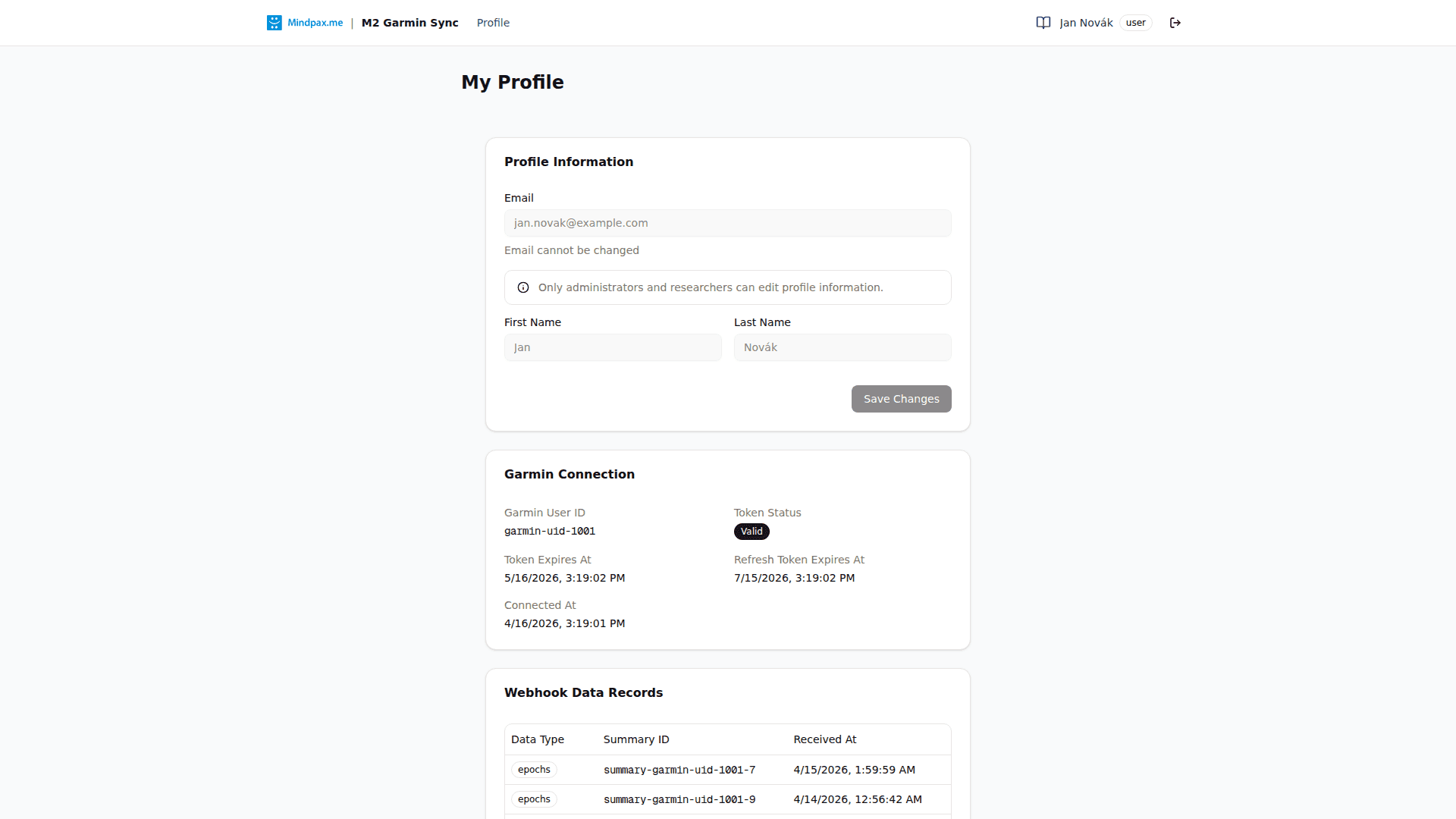
You'll be redirected back to M2 Garmin Sync. The Garmin Connection card should now show your Garmin User ID, a Valid token status, and the Connected At date.
M2 Garmin Sync uses Garmin's official OAuth 2.0 flow — at no point does the platform see or store your Garmin password.
What happens next
Once connected, Garmin will start sending your wearable data to M2 via webhook notifications. You don't need to do anything else — wear your device and sync it normally with Garmin Connect (which happens automatically when your phone is nearby).
The first batch of data may take a few hours to arrive depending on your device's sync schedule. Subsequent updates typically arrive within minutes.
Understanding the Garmin Connection card
After connecting, the Garmin Connection card on your Profile shows:
- Garmin User ID — Garmin's internal identifier for the linked account. This never changes and identifies which Garmin profile the incoming data belongs to.
- Token Status — Valid means M2 can fetch data normally. Expired (red) means the access token has lapsed; the platform refreshes it automatically via a daily cron job.
- Token Expires At — when the current access token stops working. Refreshed automatically — no action needed from you.
- Refresh Token Expires At — the outer expiry of the connection. Also refreshed automatically.
- Connected At — when the original OAuth flow completed.
All tokens refresh automatically. You never need to take any action to keep your connection alive — just wear your device and let it sync normally.
Your synced data
Below the Garmin Connection card you'll find Webhook Data Records — a paginated table of every data notification the platform has received for your account. Each row shows:
- Data Type — e.g.,
activities,dailies,sleeps,stress,bodyBattery - Summary ID — Garmin's identifier for that specific data record
- Received At — when M2 received the notification from Garmin
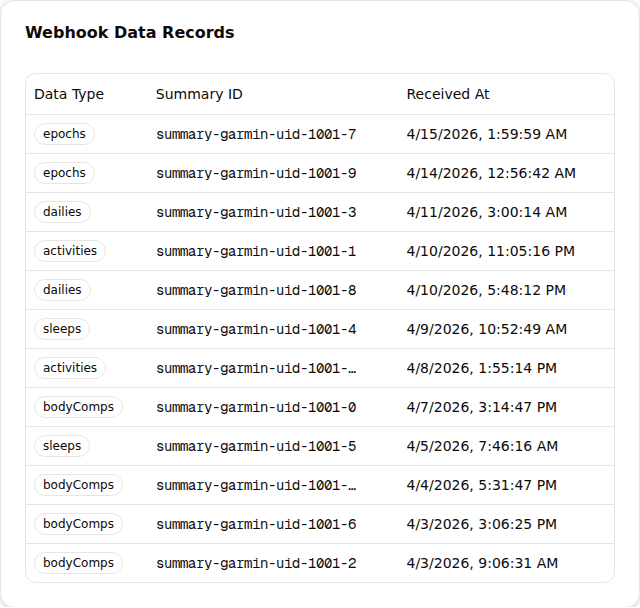
This table is your window into what the platform has actually received — if you wear your device and sync Garmin Connect but don't see new rows appearing within a few hours, something's wrong (see the FAQ).
Disconnecting
If you want to stop sharing data:
- Open the Garmin page.
- Click Disconnect Garmin.
- Confirm. Your tokens are immediately revoked and no further data will be collected.
You can also revoke access from the Garmin side by going to Garmin Connect → Account Settings → Account Information → Connected Apps. If you do this, the platform receives a deregistration notification and updates your status automatically.
Disconnecting does not delete data already collected. Contact the study coordinator if you want previously collected data removed.
Reconnecting
You can reconnect at any time by clicking Connect Garmin again. Your historical data and account remain associated with you.